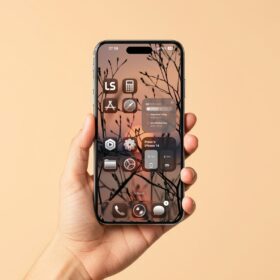
If you’re looking for a new way to customise your iPhone and give it a new look, especially a simple, clean and minimalist design, then this video is for you.
I have some homescreen ideas that you can emulate and use it to customise your iPhone.
I always love to keep my phone homescreen clean and simple and that’s what you will see in this video. Mind you, I also used the shortcut app for these setup.
So, let’s proceed.
The Ultimate Minimalist iPhone Home Screen Setup (2026)
The setups includes;
- The lockscreen
- The widget section
- The homescreen
- The control center.
1. The lockscreen
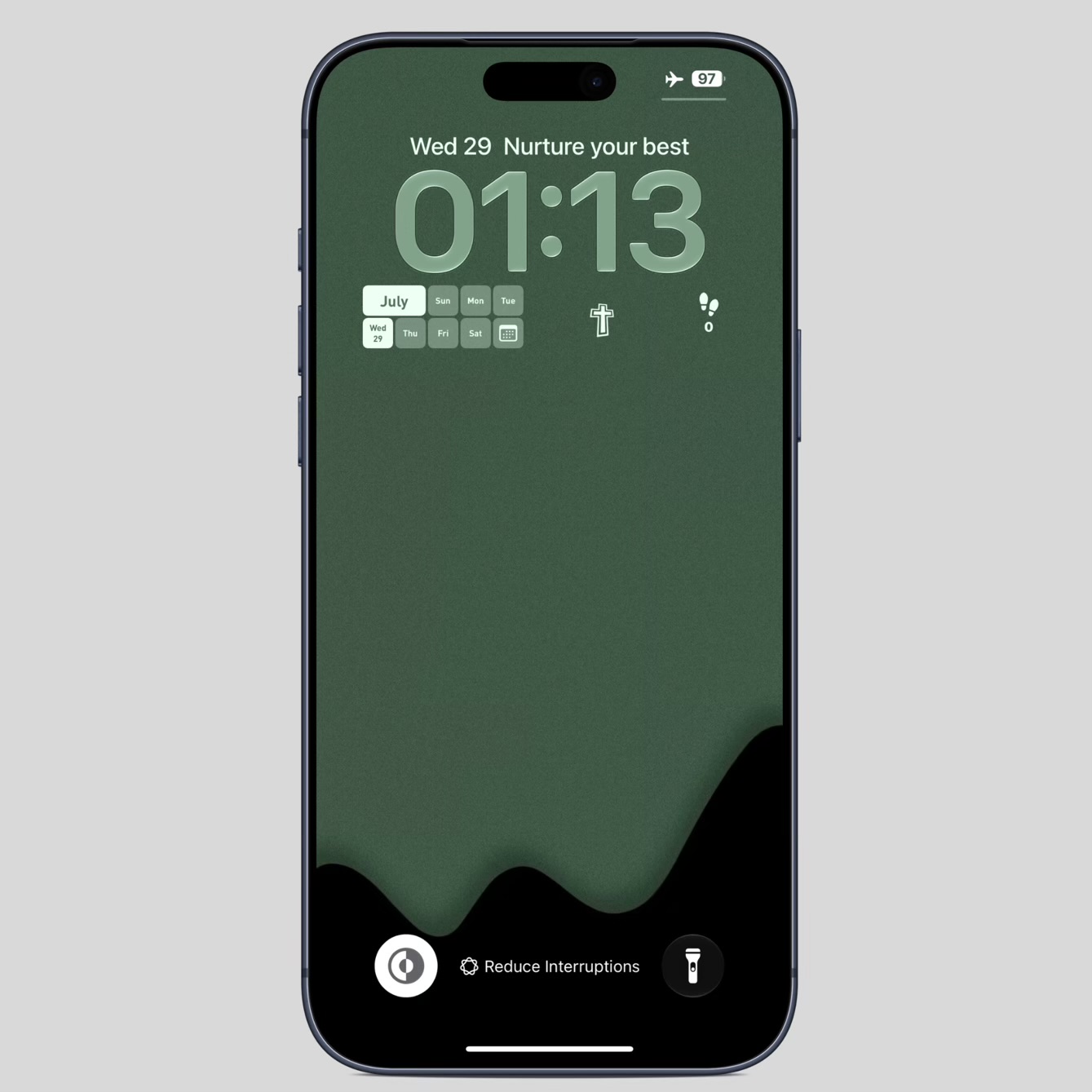
Starting with the lockscreen.
The widget at the very top is from widgy widget, and it is a motivational quote widget. Very useful and the quote motivates my day.
Moving down to these widgets right this section, this very one is from the app called Moyo widget, while the other two widgets are from widgy widget.
If you go to widgy widget, you will see tons of lockscreen widgets to use for your lockscreen.
Others are screen mode, Flash light, and the clock widget.
Don’t Miss;
Clean minimalist iPhone homescreen setup
The links to the lockscreen;
And that’s all I have for the lockscreen.
2. Widget Section
Next is the widget section.
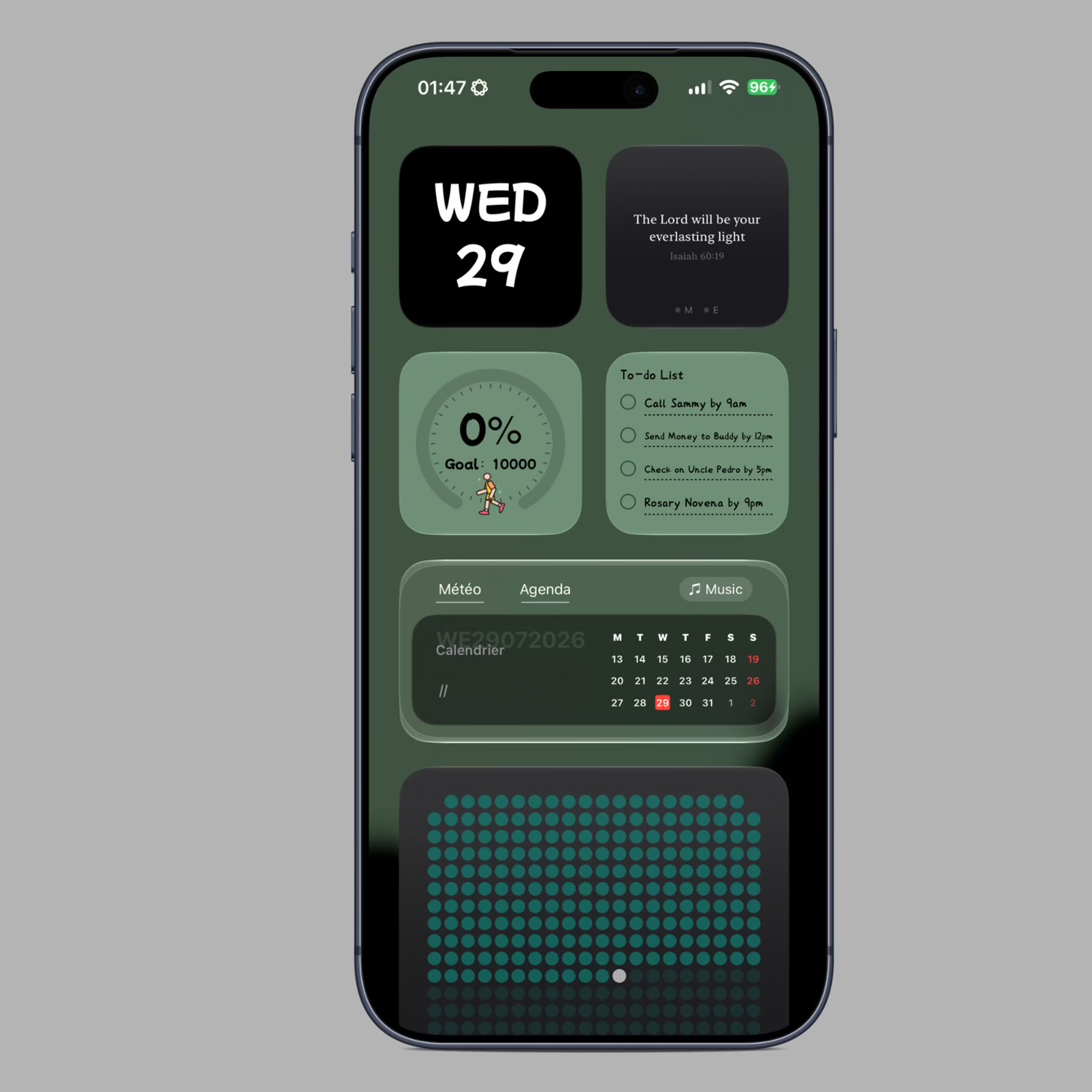
And I have six widgets at this section.
The first widget is a bold calendar widget from Moyo Widget app. I just love the bold writing and that’s the reason I added the widget to this section. Mind you, Moyo Widget is a paid widget but relatively cheap.
The second widget is from the app called Praya. This App gives daily Bible verses that inspires and motivates me a lot. A very good app and free to use.
The third widget is a step counter from the Moyo widget app. Quite accurate as it uses Apple fitness app to update the step counter.
Next is a to do list widget also from Moyo widget. I use this a lot, and it been very useful. Not so fantastic I must say, but quite useful.
Right below is a calendar widget from widgy. Look so nice especially with the transparent glass background. Very nice free widget to use.
Lastly, is this large widget from 365 Vibe days.
Which is a time progress widget which can be used for event countdown or visual Time progress.
The widget let’s you know what’s remaining in a year, month, week and day.
I mainly use the widget to know the number of days remaining in a calendar year, and if you check right here, it displays the total number of days left in 2026 which is 158 days.
Links to the apps;
And that’s all I have for the widget section.
3. The homescreen
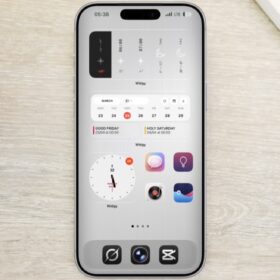
So, here’s my homescreen setup.
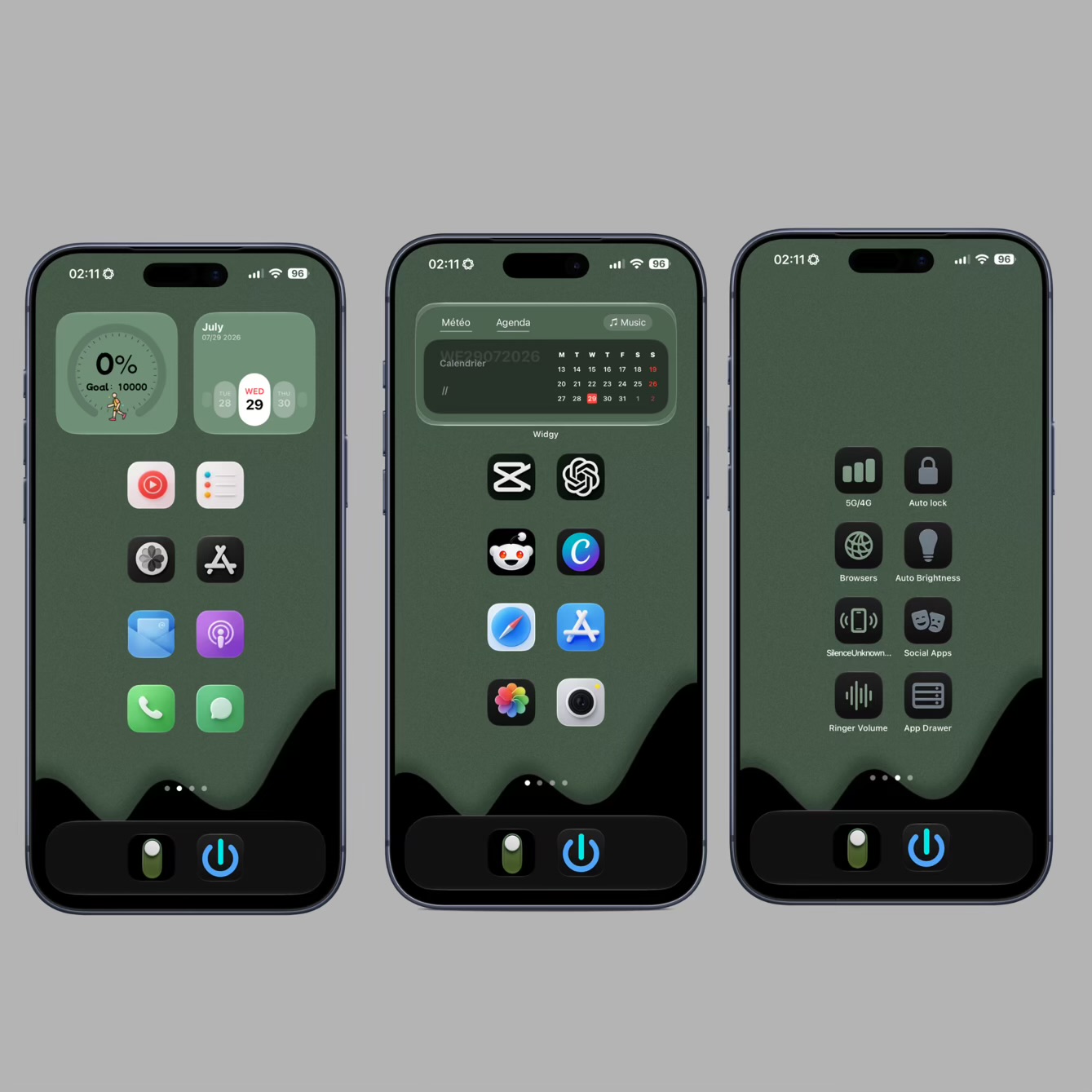
Looks very clean and nice.
Simple but nice.
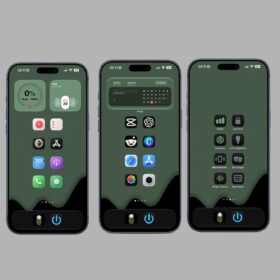
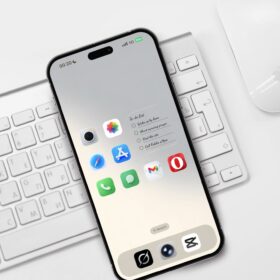
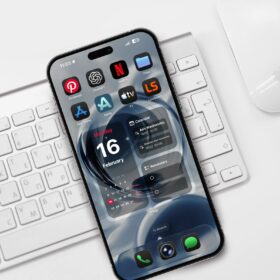
I’ve three homescreen design, the first, the second, and the third as shown in the above image.
Starting with the first homescreen is the calendar widget from widgy. I love the calendar widget, and even though I have it at the widget Section, I decided to also add it to the homescreen.
Right below are custom made App icons which I used the shortcut app to create.
Same goes to the second homescreen layout.
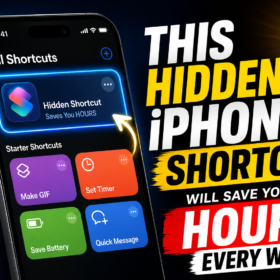
For the third homescreen layout are different shortcuts that saves time. Next post I will explain how you can create these types of shortcut for your iPhone and iPad. Don’t miss out on the post.
Again, at the dock section, I used the shortcut app to create a shutdown/restart shortcut, which I can easily shutdown or restart my iPhone.
The second icon is a shortcut to pull down or show the control center. Very helpful especially if you have small hands and using the pro max iPhone.
Links to the widgets;
Moyo widget
4. Control Center
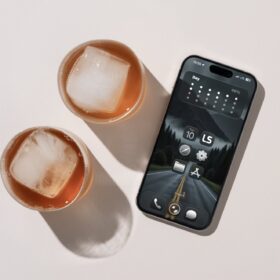
Here are my Control Center.
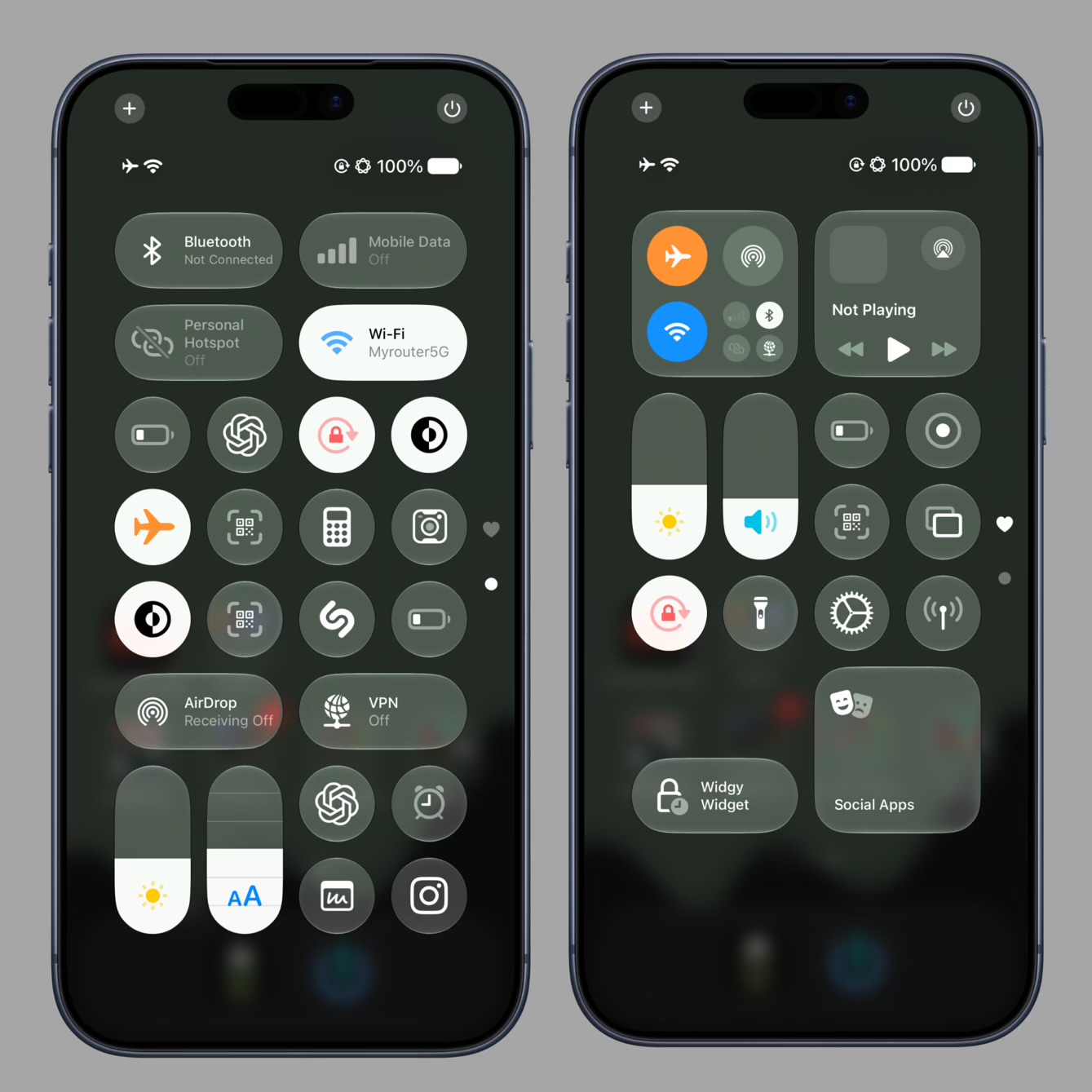
They look simple but clean.
The control center has both the default and custom made shortcuts. I recommend you Watch my YouTube videos on how to use the shortcut app to customise your iPhone Control Center.
And that’s all I have. I recommend you check out the full video on my YouTube channel.